5 Internal Tools You Can Build with Airtable in a Day
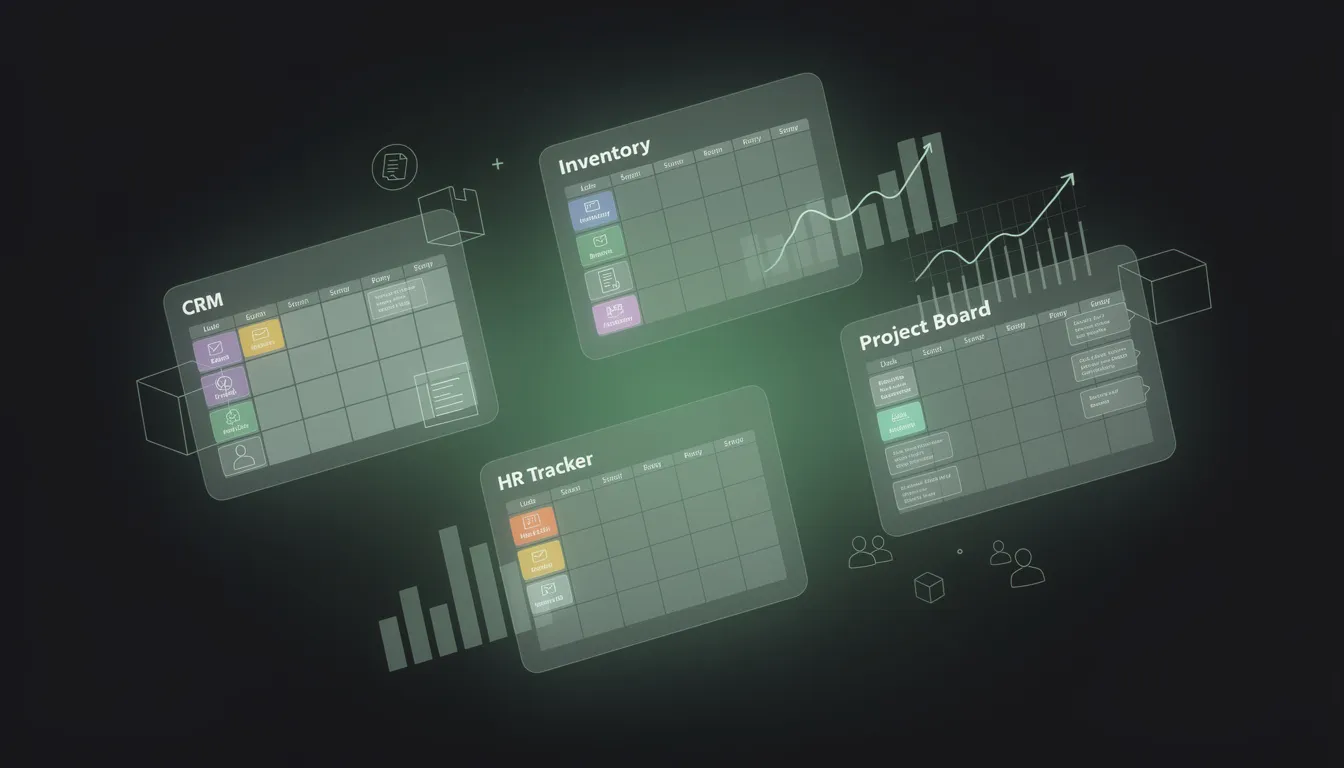
Every team runs on spreadsheets and manual processes that should be apps. Deals tracked in a Google Sheet nobody keeps updated. Projects managed in a document that three people edit simultaneously. Onboarding handled with a copied checklist that varies by manager.
The problem is that building real software takes months and thousands of dollars. But there is a middle ground: Airtable. It is a database that looks like a spreadsheet, connects to your tools, automates workflows, and can be configured in hours — not months.
Here are five internal tools you can build in a single day, starting from zero.
Why Airtable Is the Best Starting Point for Internal Tools
Airtable sits in the right position on the spectrum between a spreadsheet and a database. It is visual enough for non-technical team members to use and maintain. It has flexible field types (text, select, date, attachment, user, formula, link to another record) that handle most internal tool data models. Its automation builder lets you trigger actions (send email, update record, notify Slack, create records) without any code.
It also has Views — different visual representations of the same data. One base can display as a grid (like Excel), a Kanban board (like Trello), a calendar, a gallery, or a Gantt chart. Different team members see the same data in the format that makes sense for their role.
The limit: Airtable is not suitable for complex user-facing products (customers should not be logging into Airtable). It is for internal operations — the tools your team uses to run the business.
Tool 1: Project and Task Tracker
What it replaces: Post-its, a chaotic Google Sheet, or a project management tool that nobody maintains because it requires too much overhead.
Build it in: 2–3 hours
Data model:
- Projects table: Name, Status (Planning / In Progress / Review / Done), Owner, Due date, Description
- Tasks table: Task name, Project (linked to Projects), Assignee, Status, Priority, Due date, Notes
Views to create:
- Grid view (default for project managers)
- Grouped by Status with Kanban view for visual progress tracking
- Filtered by Assignee for individual to-do lists
- Calendar view for deadline overview
Automations to add:
- When a task moves to "Done" → Notify the project owner via Slack or email
- When a task due date is tomorrow → Remind the assignee via email
- When all tasks in a project are Done → Update the project status to Done automatically
This is the most flexible task tracker most teams will ever need, and it takes less than a day to build.
Tool 2: Lightweight CRM
What it replaces: A spreadsheet of contacts, missed follow-ups, and deals that fall through because nobody knows where they stand.
Build it in: 2–3 hours
Data model:
- Contacts table: Name, Email, Company, Phone, Source, Tags, Last activity (formula or date field)
- Companies table: Company name, Industry, Size, Website, Associated contacts (linked)
- Deals table: Deal name, Contact (linked), Company (linked), Stage (Lead / Qualified / Proposal / Negotiation / Won / Lost), Value, Expected close date, Owner, Notes
Views to create:
- Kanban on the Deals table, grouped by Stage (your visual pipeline)
- Gallery view for Contacts with headshot attachment field
- Filtered view: My deals (filtered by current user)
- Filtered view: Deals closing this week
Automations:
- When a deal moves to Won → Notify Slack #wins channel
- When a deal's expected close date passes and stage is not Won or Lost → Alert the owner
- When a new Contact is created → Send a welcome email via Gmail or Brevo
This is genuinely useful for agencies, consultancies, and small sales teams. It is not Salesforce — but most teams do not need Salesforce.
Tool 3: Employee Onboarding Checklist
What it replaces: A manually copied document checklist that different managers customize differently and nobody knows whether it has been completed.
Build it in: 1–2 hours
Data model:
- New Hires table: Name, Start date, Role, Department, Manager, Buddy, Status (Not started / In progress / Completed)
- Onboarding Tasks table: Task name, Category (IT Setup / HR & Compliance / Team Introduction / Role-Specific / 30-60-90 Day Goals), New Hire (linked), Due offset (number of days from start), Assigned to, Completed (checkbox), Notes
Views:
- Filtered per new hire: each manager sees their new hire's task list
- Grouped by Category for an overview of all onboarding domains
- Calendar view with computed due dates (use a formula:
{Start Date} + {Due Offset})
Automations:
- When a New Hire record is created → Automatically create all standard onboarding tasks from a template
- When a task is completed → Update the new hire's progress percentage (use a rollup field)
- On new hire's start date → Send manager a summary email of Day 1 tasks
This eliminates the "did anyone set up the laptop?" problem that plagues every company's first week.
Tool 4: Content and Approval Workflow
What it replaces: Email threads where content gets lost, Slack messages requesting approval that nobody responds to, and publishing assets without the right sign-off.
Build it in: 2 hours
Data model:
- Content table: Title, Type (Blog / Social / Email / Ad / Video), Status (Brief / Draft / In Review / Approved / Published / Archived), Author, Reviewer, Publish date, Link to draft (URL field), Notes, Approval decision
Views:
- Kanban grouped by Status (the editorial board)
- Filtered by Author (personal queue)
- Filtered by Status = In Review (reviewer's queue)
- Calendar view for publish schedule
Automations:
- When Status changes to "In Review" → Email or Slack the assigned reviewer with a link to the content
- When the Approval Decision field is set to "Approved" → Change Status to Approved and notify Author
- When the Approval Decision is "Needs revision" → Change Status to Draft and notify Author with a message
- When Status changes to "Published" → Add to a Published archive view and notify the team
This gives every piece of content a traceable history from brief to live — without any external tool.
Tool 5: Client Portal
What it replaces: Email updates, shared folders with confusing version names, and clients who do not know the status of their project.
Build it in: 3 hours
Data model:
- Clients table: Client name, Contact person, Email, Contract status, Start date
- Deliverables table: Deliverable name, Client (linked), Type (Design / Development / Report / Review), Status (Upcoming / In Progress / Awaiting Feedback / Completed), Due date, Attachment, Notes
The client portal trick: Airtable's shared views allow you to create a filtered view that shows only records where Client = [specific client name]. You generate a unique shareable link for each client's filtered view. The client sees only their own deliverables and statuses — no code, no authentication system required.
Each client gets a bookmarked link to their own read-only portal view. You update records in Airtable and clients see the change in real time.
Automations:
- When a deliverable status changes to "Awaiting Feedback" → Email the client contact with the link to review
- When a deliverable is marked Completed → Update a rollup "% complete" field on the client record
Making Them Actually Work: Automations, Views, and Permissions
The difference between an Airtable base people use and one they abandon is three things:
Automations. Every manual notification or status update that can be automated should be. If people have to manually update a field to tell someone something happened, they will forget. Automate it.
Views. Each team member should have a personal view filtered to show only what is relevant to them. A project manager's view shows all projects. An individual contributor's view shows only their assigned tasks. Do not make people filter the data themselves every time they open the base.
Permissions. Use Airtable's permission levels (read-only, editor, commenter) appropriately. Shared views for client portals should be read-only. Automations should have a dedicated service account. Team members should only have edit access to the bases they actively manage.
The five tools above cover the operational backbone of most service businesses and early-stage startups. They are not enterprise solutions — but they work immediately, require no development budget, and can be running by end of day.
I'm Mehdi Yatrib, a no-code consultant based in Casablanca. I build internal tools, client portals, and operational systems in Airtable and other no-code platforms that give teams back the hours they spend on manual processes.
Written by Mehdi Yatrib — Indie Maker & Consultant based in Casablanca, Morocco.
Work with me on No-Code Solutions